LinkedIn limits how many connection requests, messages and other actions an account can do in a day. To keep your account within safe levels, Klenty has built-in daily limits called LinkedIn Throttle.
Settings → LinkedIn Settings → LinkedIn Safety Settings
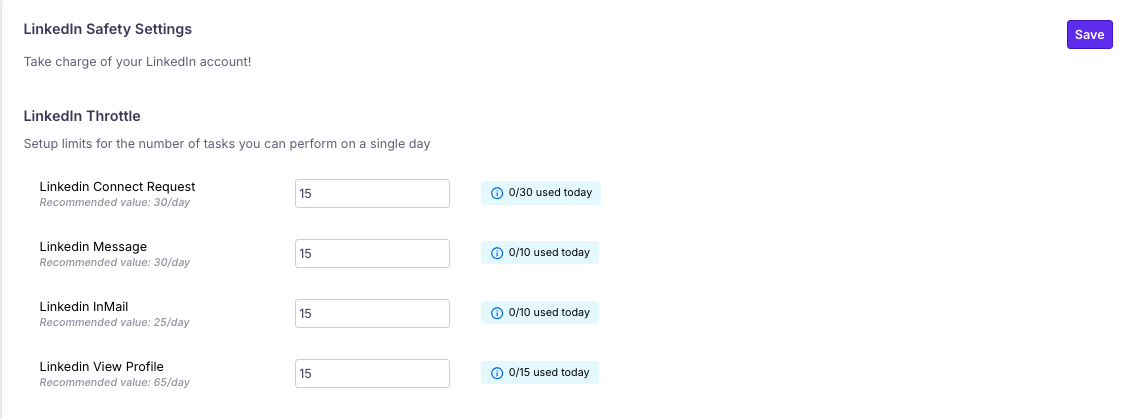
Set the maximum number of tasks you can complete in a single day. Klenty suggests a default for each task type, and each limit can be set between 1 and 500.
Task type | Recommended / default per day |
Linkedin Connect Request | 30 |
Linkedin Message | 30 |
Linkedin InMail | 25 |
Linkedin View Profile | 65 |
Each row shows how much you've used today, for example "12/30 used today". If you enter a value above the recommendation, you'll see the warning "Higher than the recommended range".
The maximum length of a connection-request note. The default is 200 characters, and you can set a value between 1 and 300.
Go to Settings → LinkedIn Settings → LinkedIn Safety Settings.
Change the values for the tasks you want to limit.
Click Save. You'll see "Throttle settings updated".
You'll see a banner such as "You've hit your Connection Request limit for the day. Come back tomorrow or change your LinkedIn throttle limit." Auto Execute also won't start while a limit is reached (the check shows Reached limit).

Usage counts reset each day, based on your default cadence time zone.
For an AI agent's LinkedIn account, only the agent owner can edit the throttle ("Throttle settings can only be edited by the Agent Owner").
LinkedIn Settings appears only when your plan includes LinkedIn tasks.
Related: LinkedIn Integration, LinkedIn Auto Execute
