When you have more than one number, Klenty can choose which one each call goes out on. This is called the Dialing Strategy. Local Dial, the older stand-alone feature, is now one of five choices.
Choice | What it does |
Dynamic Presence | Klenty automatically picks the closest local number to the prospect from a global number pool. If no pool number matches, the call uses one of your own numbers. This needs a paid add-on. Until you buy it, the option shows a lock icon. |
Optimise Connect | Automatically picks the best number to dial from. Higher pickup without burning your numbers. |
Auto-rotate | Automatically rotates through your numbers so no single number is overused. You set how many calls go out on a number before it moves to the next one: 1 to 50, default 4. |
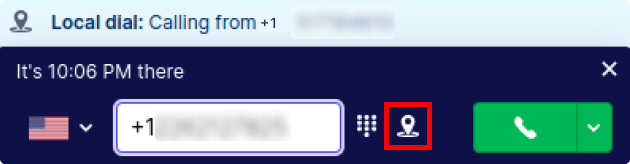
Local dial | Automatically picks a number that matches the prospect's region. |
Disabled | No automatic selection. With the Dialing Strategy toggle off, every call goes out on your own (primary) number. In the dialer's settings, this choice is called Pick a specific number to call from. |
People often ignore calls from unfamiliar numbers. A number with a similar country or area code looks local, which makes prospects more likely to pick up.
To view it: Settings → Calls → Call deliverability. It's read-only there.
To edit it (admins only): Settings → Admin → Calls → Call deliverability.
For a single power or parallel session: Dial Settings in the dialer.
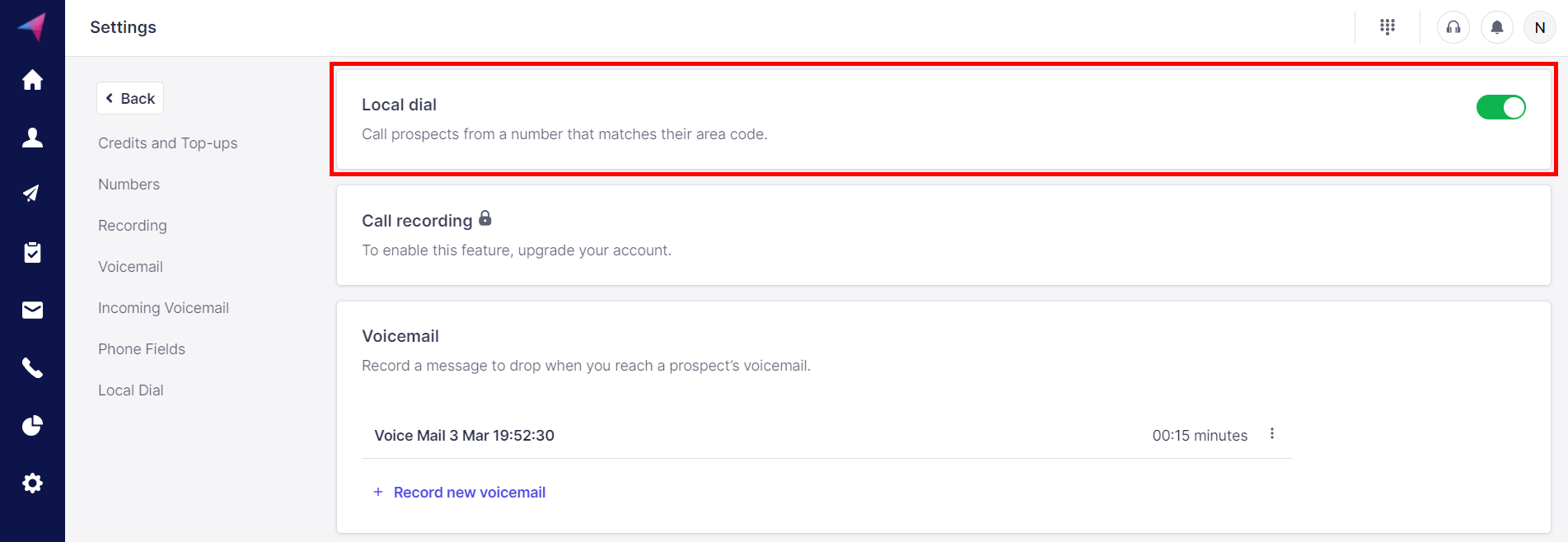
Go to Settings → Admin → Calls.
Switch on Dialing Strategy.
Pick one option. Choosing one turns the others off.
For Auto-rotate, set the number of calls per number and click Save.
It's a company setting. Your choice applies to every active team member. It replaces the old per-user Local Dial switch.
Number requirements. Optimise Connect, Auto-rotate and Local dial need at least 2 numbers. For a rep, Optimise Connect and Local dial take effect once they have at least 2 numbers assigned. Dynamic Presence doesn't need any of the rep's own numbers.
Automatic switch-off. If a rep drops below 2 numbers, Optimise Connect switches off for them. Auto-rotation switches off when the company has fewer than 2 numbers. In both cases a message tells you.
Plan availability. Optimise Connect is available on the Dialer plans and during the free trial. It's removed when a company moves to any other plan.
Older accounts. Where more than one option is still saved, the one that applies is chosen in this order: Dynamic Presence, then Optimise Connect, then Auto-rotate, then Local dial.
Using a single number for parallel or power dialing triggers a warning. Spread calls across several numbers to protect your number reputation. See Number Reputation Management.
To add numbers first, see Manage phone numbers.
