As deals move down your pipeline, you may want to send different emails at each stage. A deal-stage playbook lets you build a tailor-made cadence for each stage. When a prospect's deal enters that stage, Klenty starts them in the matching cadence automatically, so they keep getting the right follow-up as they progress.
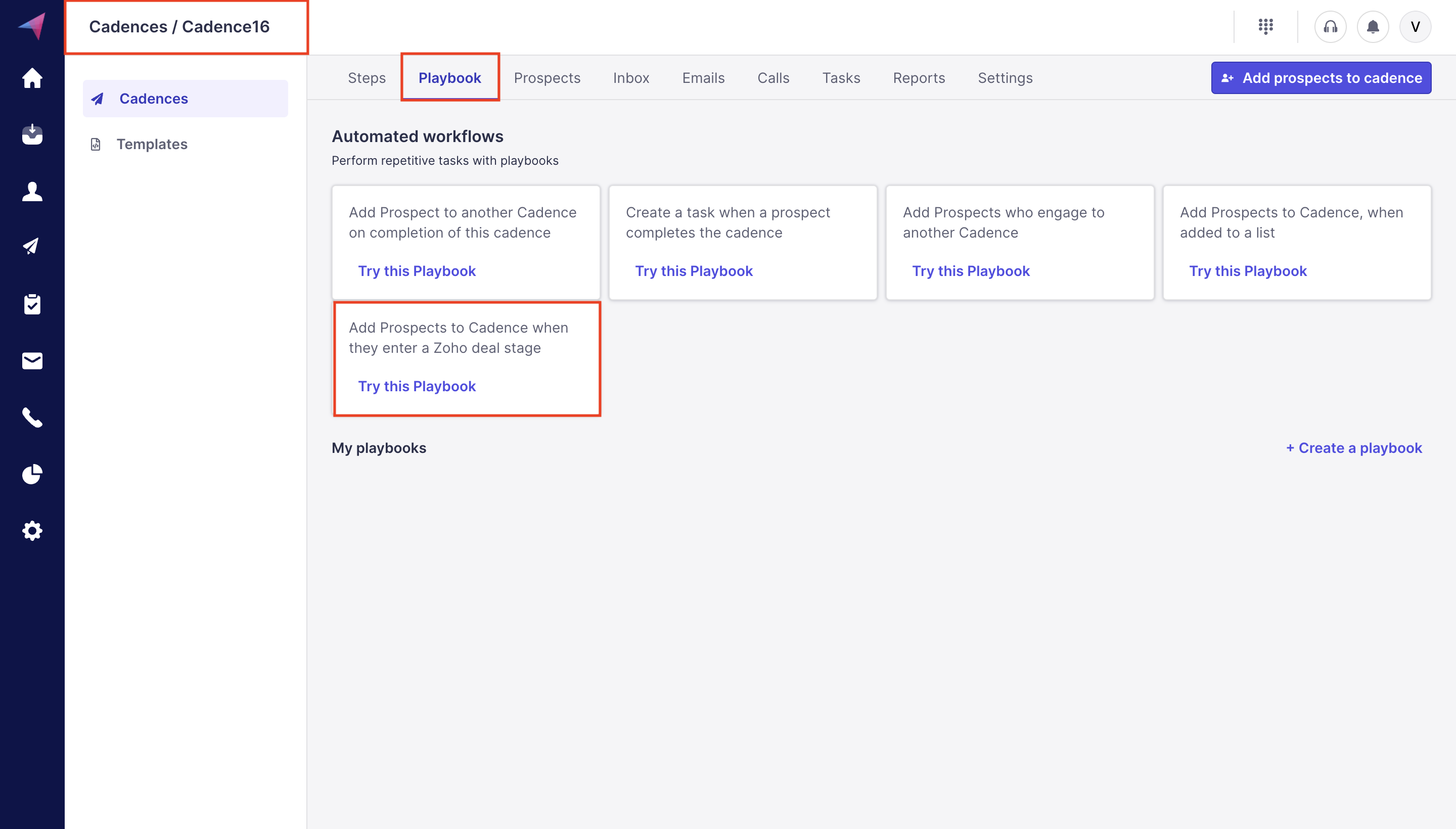
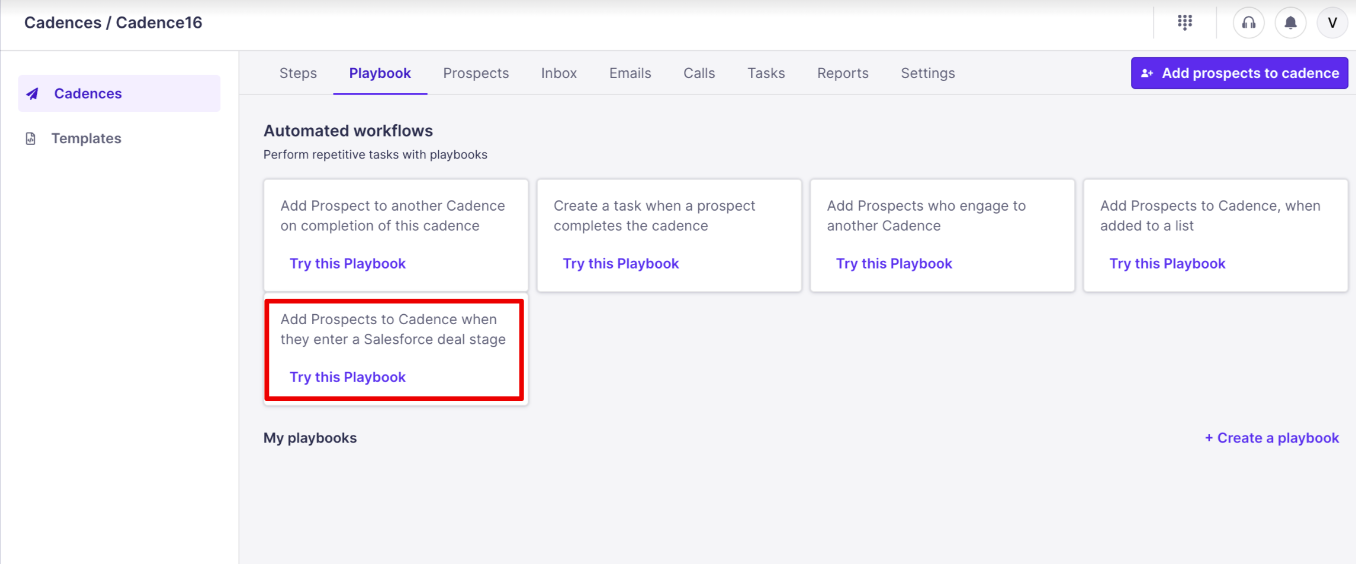
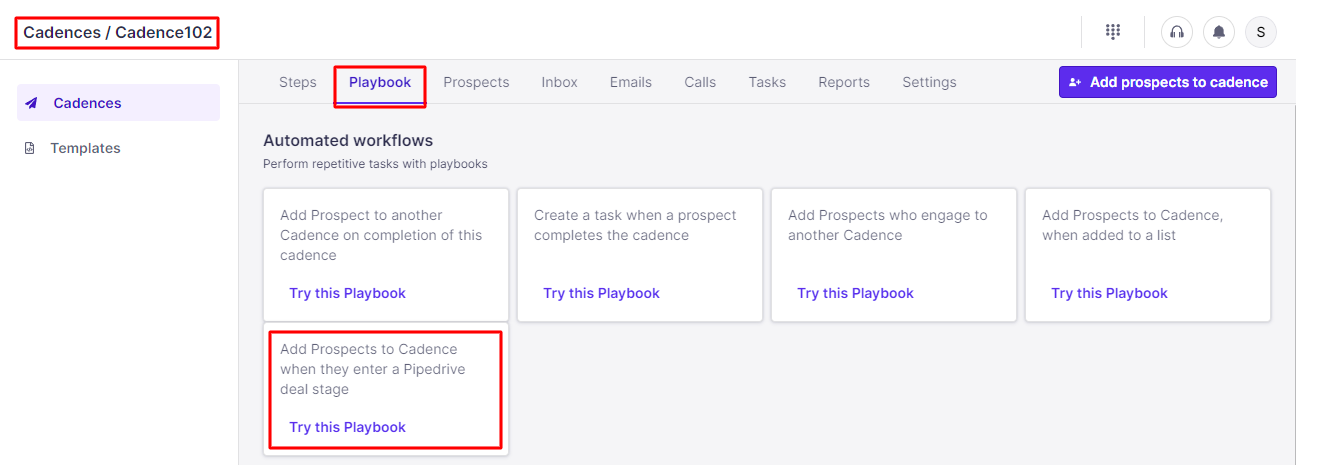
The playbook is called Add Prospects to Cadence when they enter a Pipedrive deal stage, ... a Salesforce deal stage or ... a Zoho deal stage, depending on your CRM.
Connect Pipedrive, Salesforce or Zoho in Settings > CRM Settings. Deal-stage playbooks are not offered for HubSpot or MS Dynamics 365. See Connect a CRM to Klenty (Salesforce, HubSpot, Pipedrive, Zoho, MS Dynamics).
The Playbook tab needs chaining on your plan. It is not shown on the Free or Startup plans.
For Salesforce and Zoho, CRM deal sync must also be turned on for your account. If you don't see the playbook, contact Klenty support.
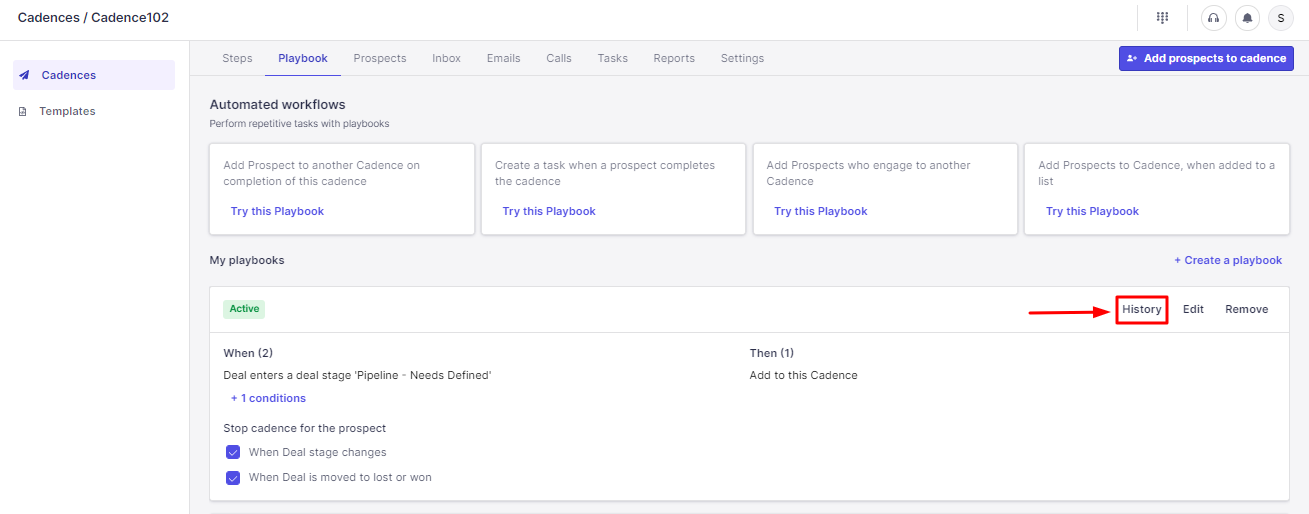
Open a cadence and go to its Playbook tab ("Automated workflows - Perform repetitive tasks with playbooks").
In the Playbook tab, pick the deal-stage playbook for your CRM from the quick-start templates, or click + Create a playbook.
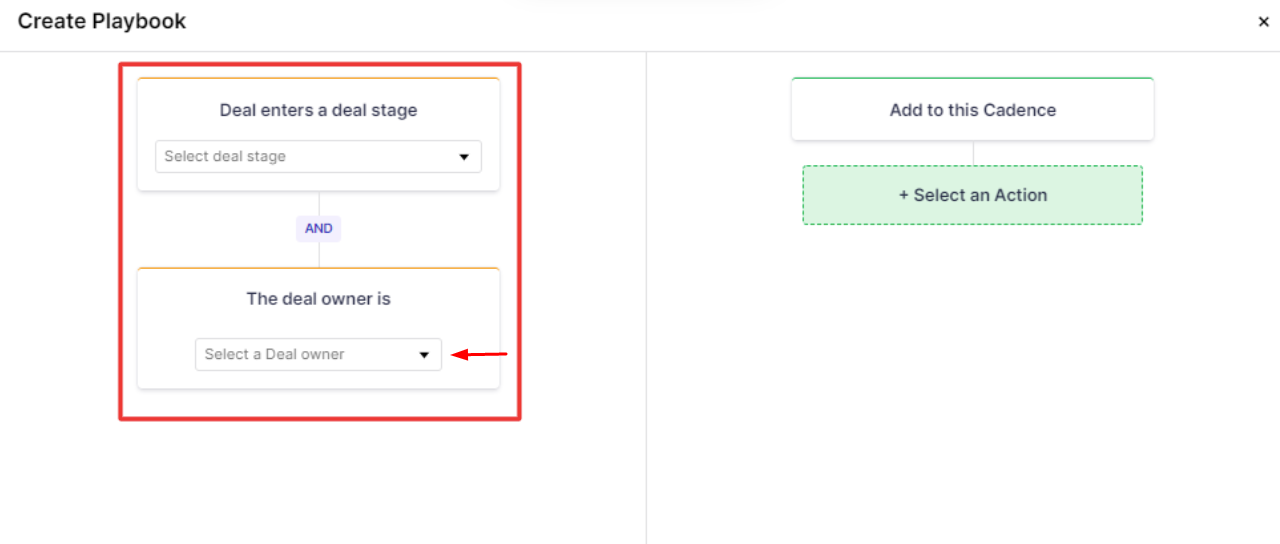
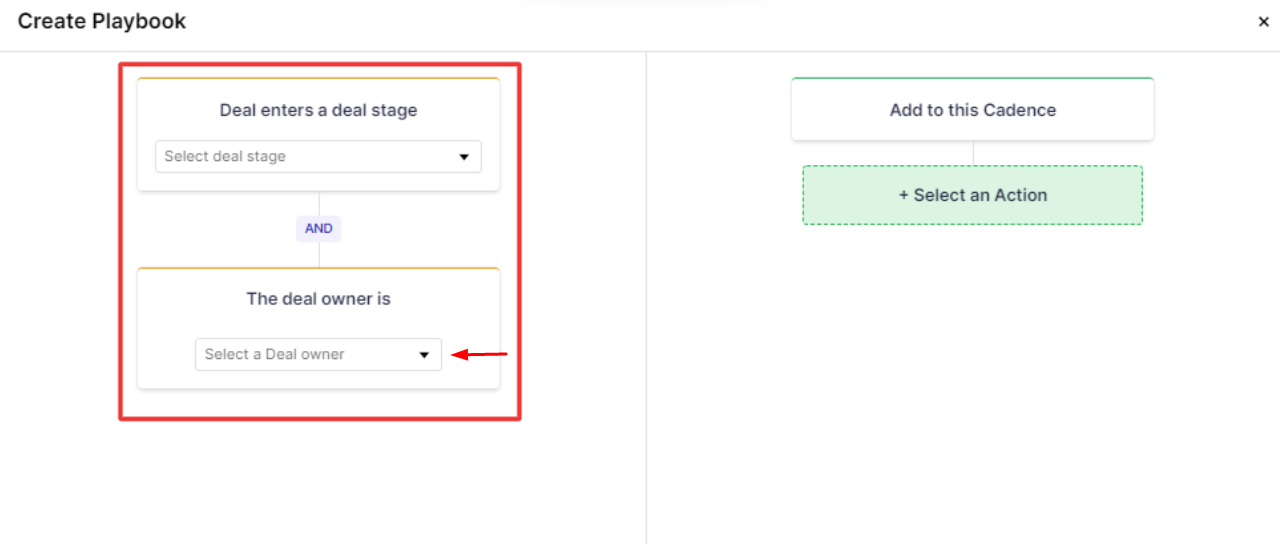
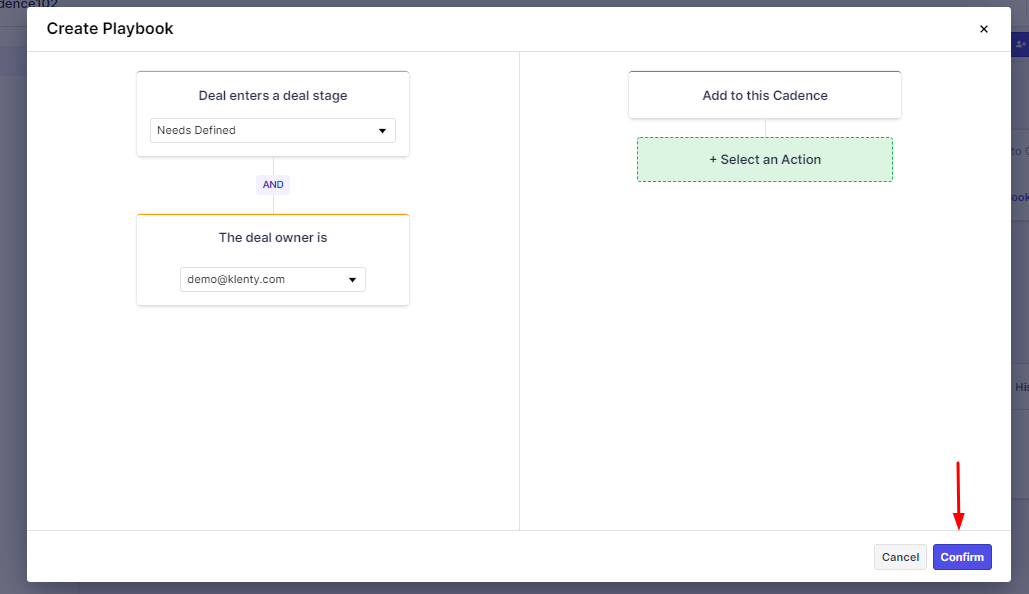
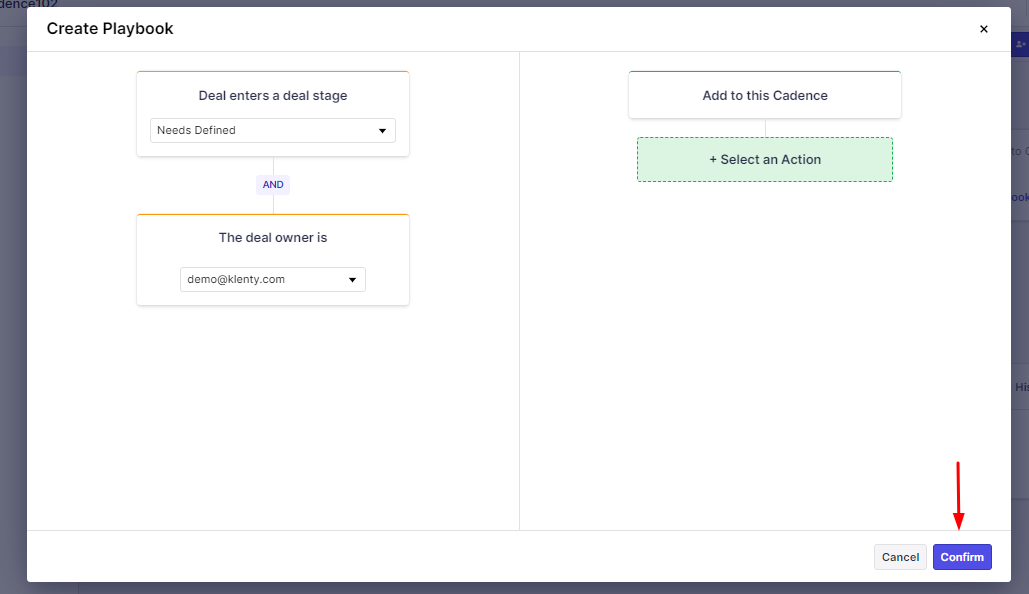
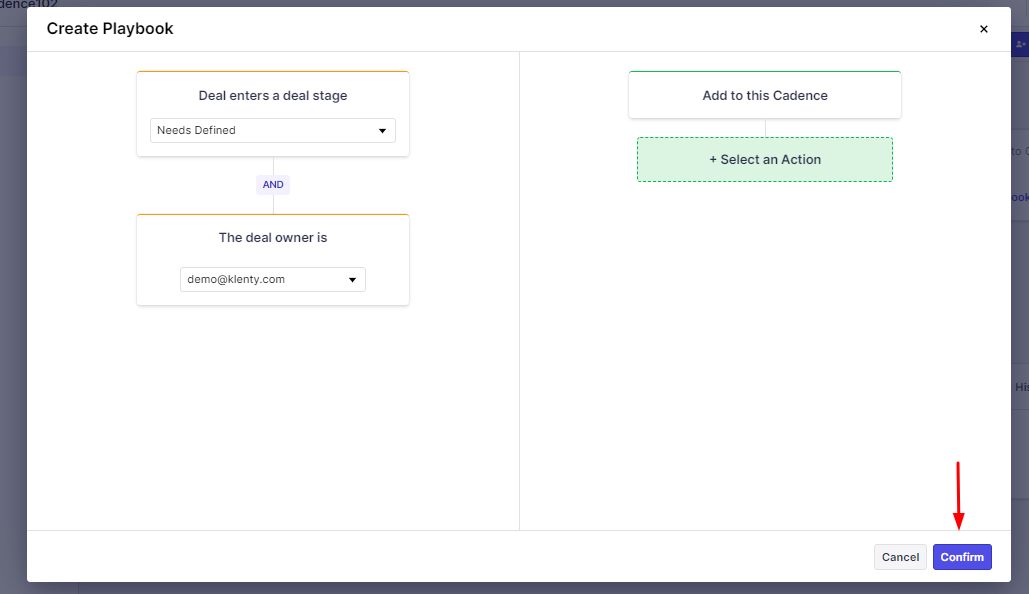
In the Create Playbook prompt, choose a pipeline. You will find all the pipelines you have created in your CRM here. In Salesforce, the condition reads Opportunity enters a stage.
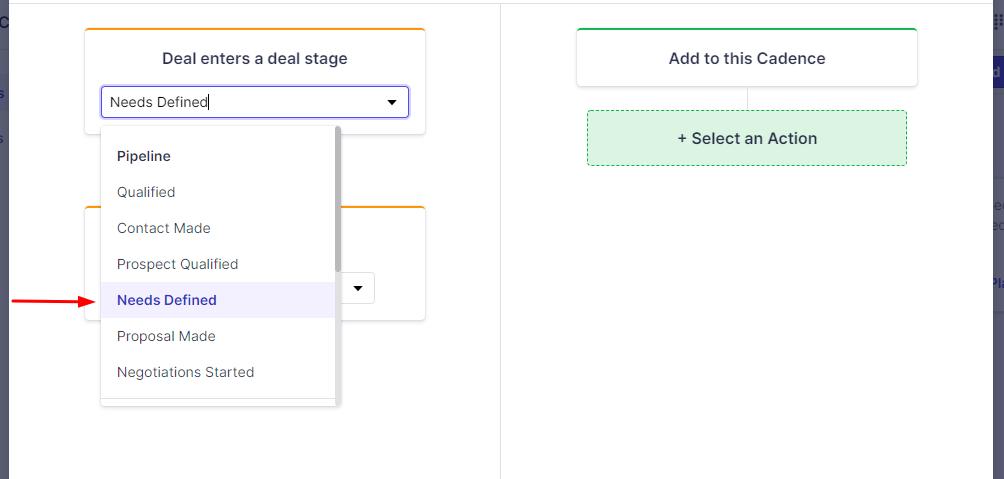
Choose the deal stage.
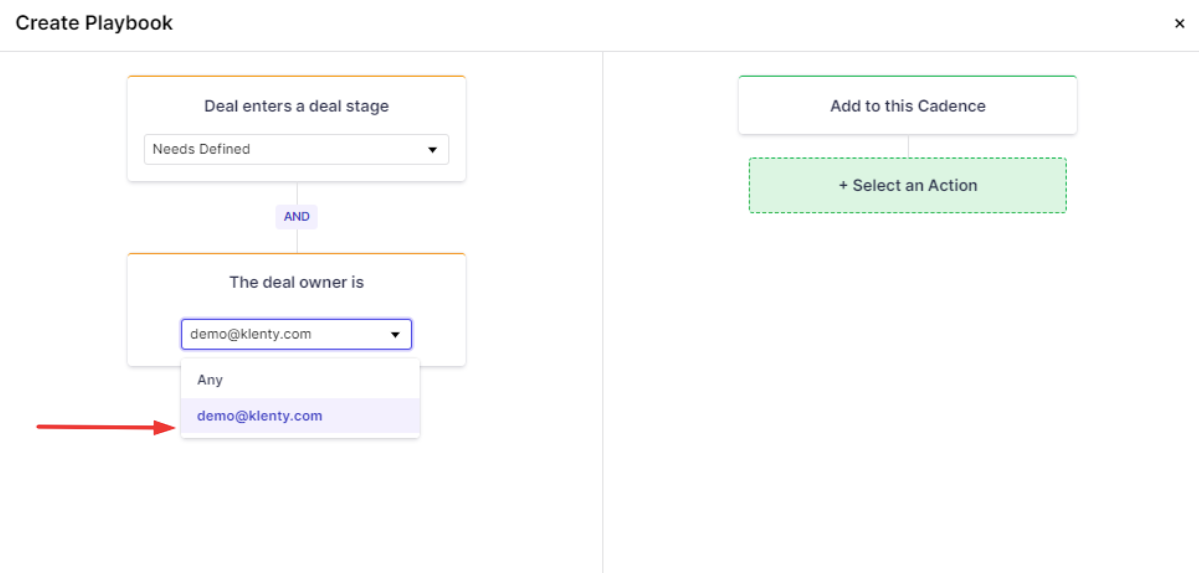
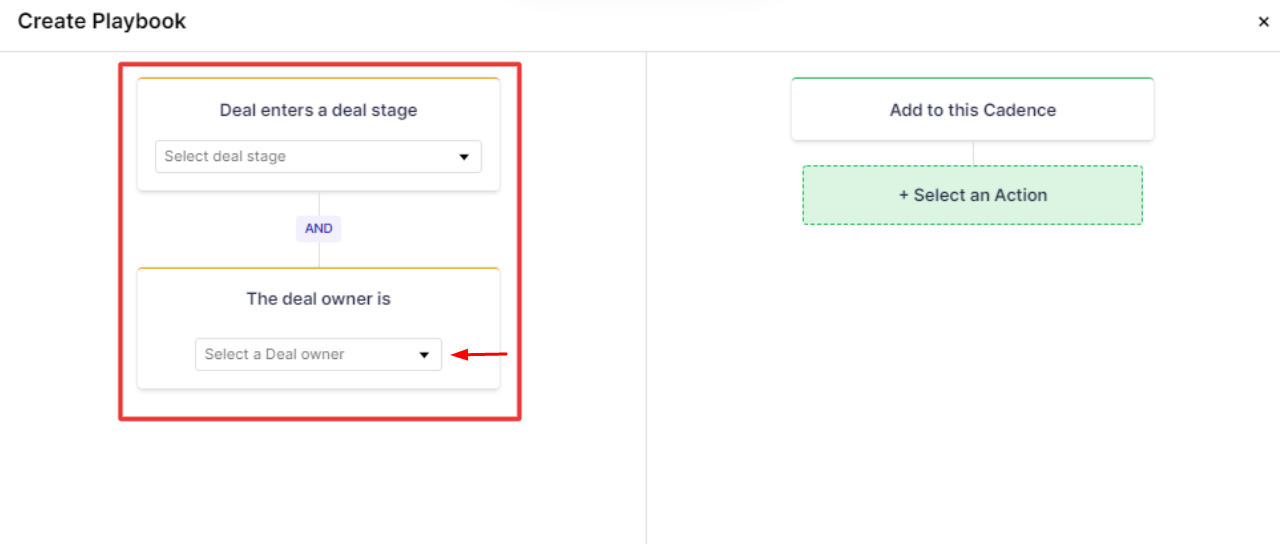
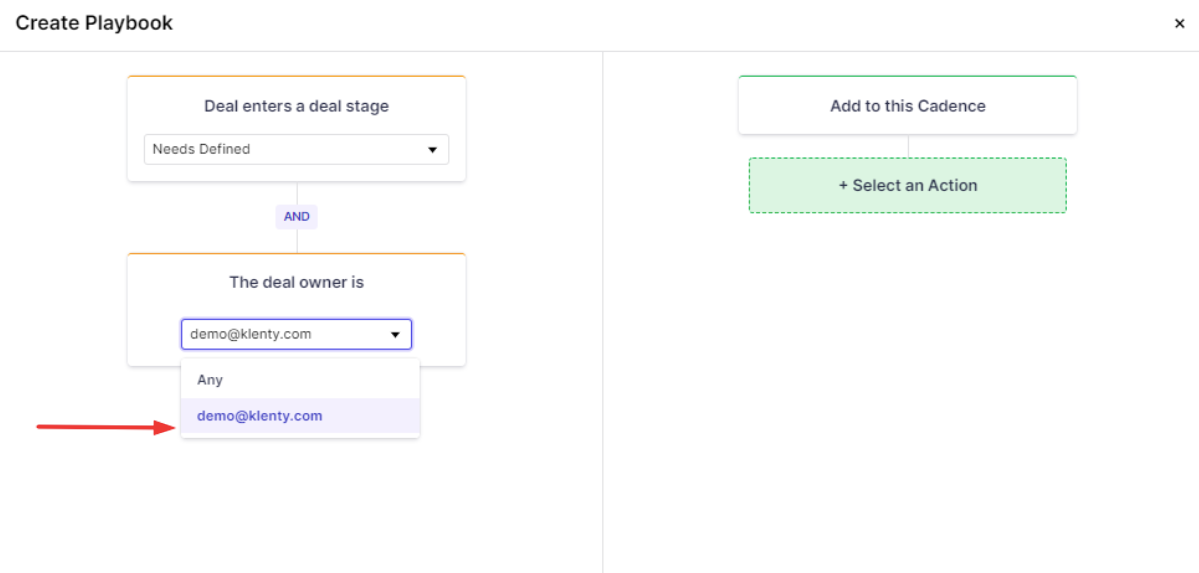
Choose the deal owner from the dropdown.
Click Confirm. Your playbook is live.
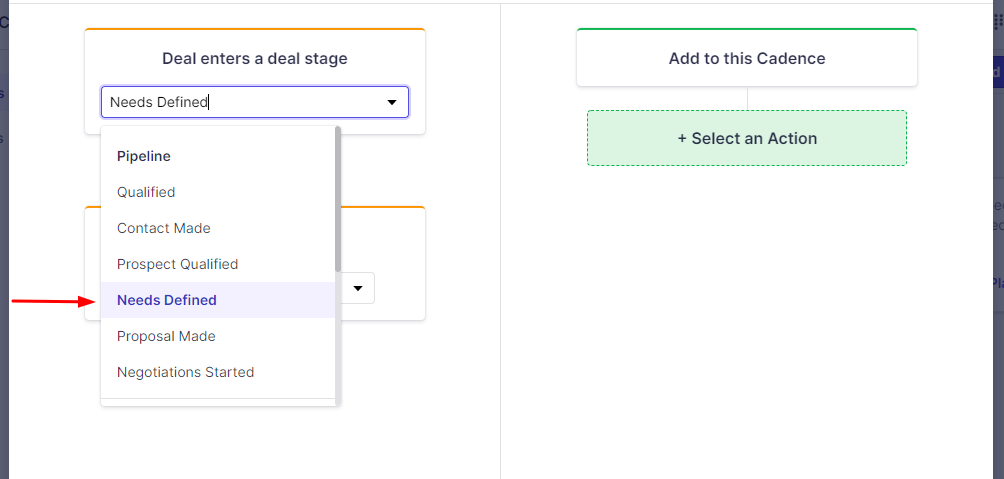
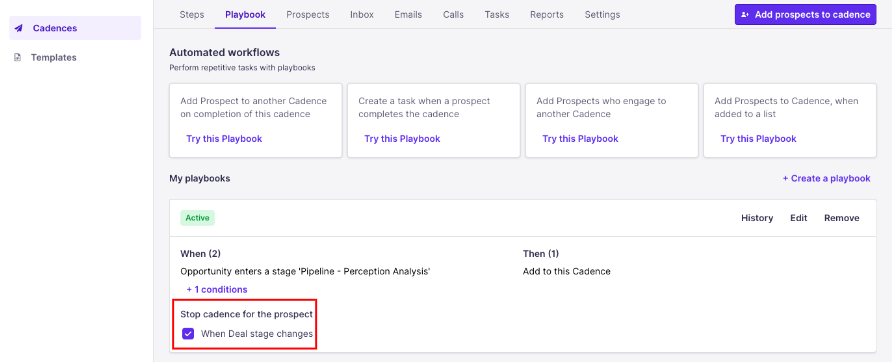
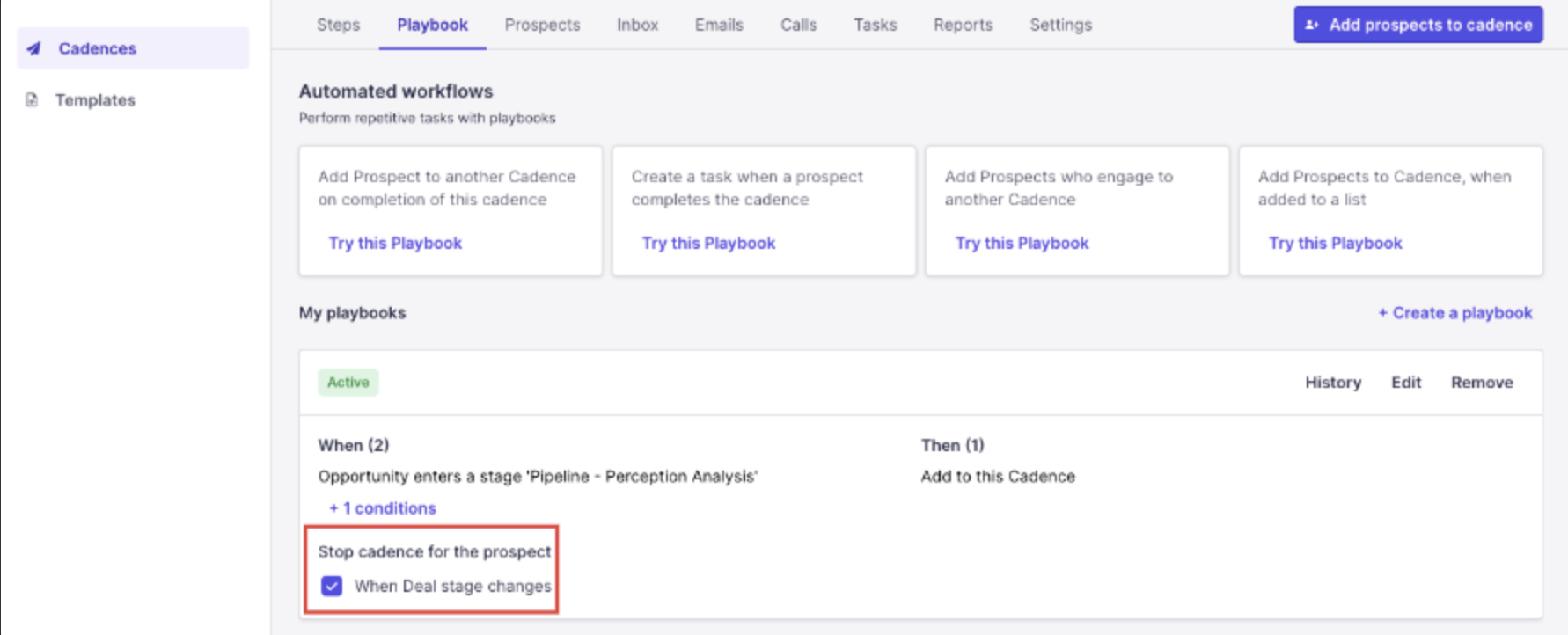
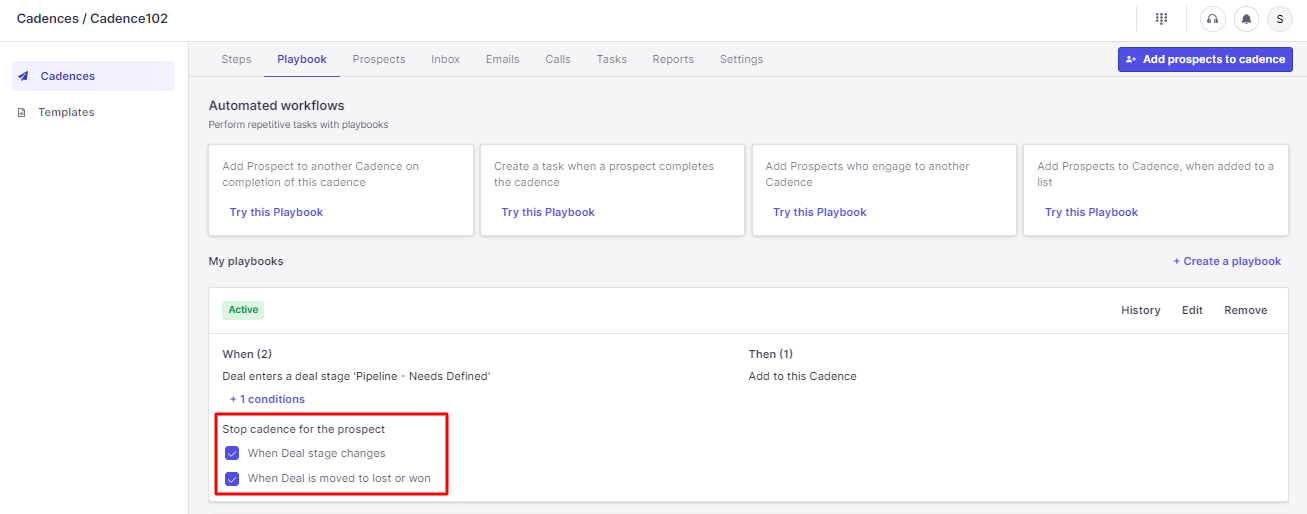
Stop the cadence when the deal stage changes. You can choose to stop the cadence if the deal moves to a different stage. In Pipedrive you can also stop it when the deal is marked as lost or won.
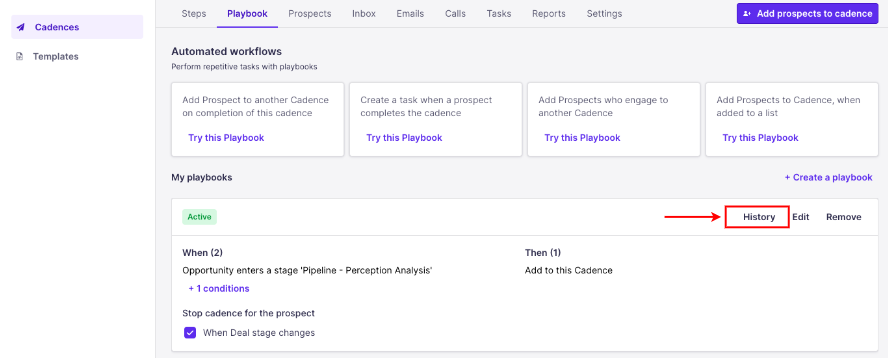
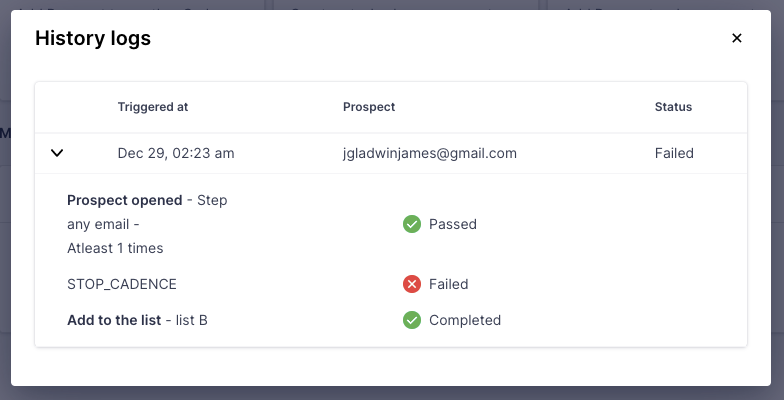
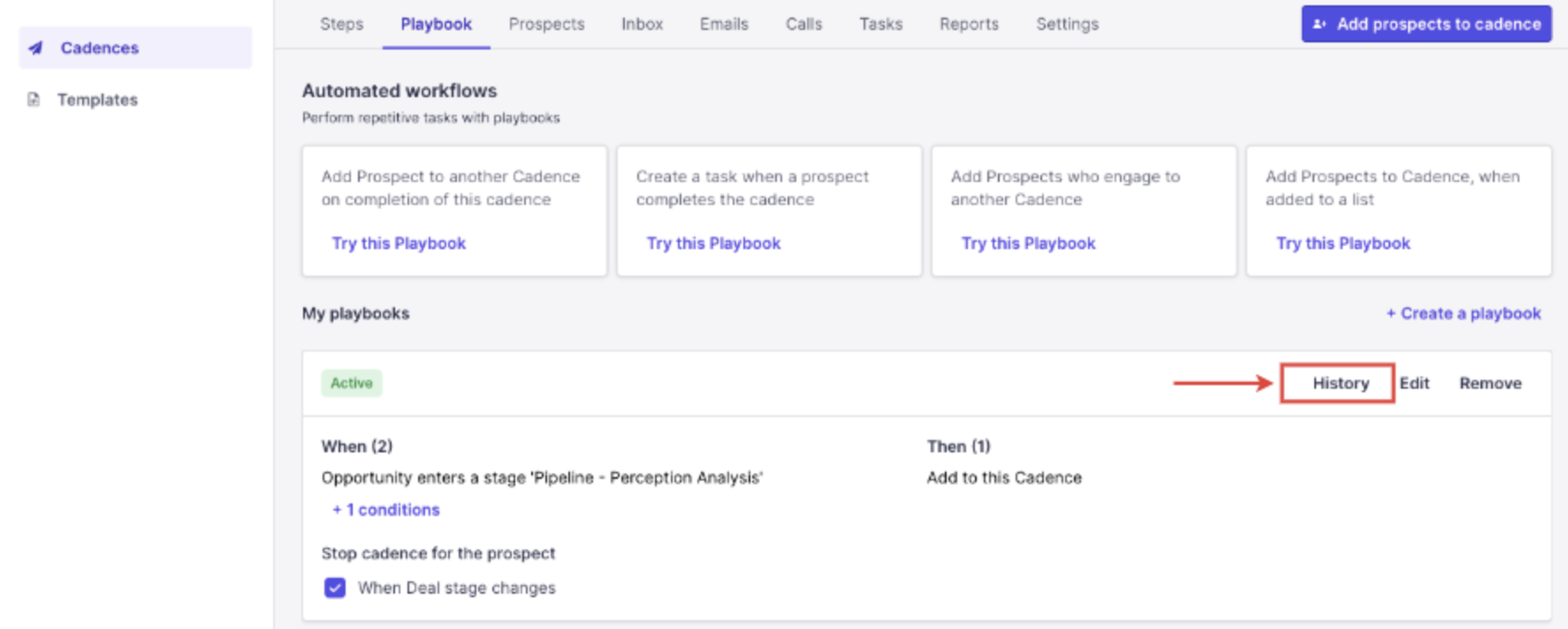
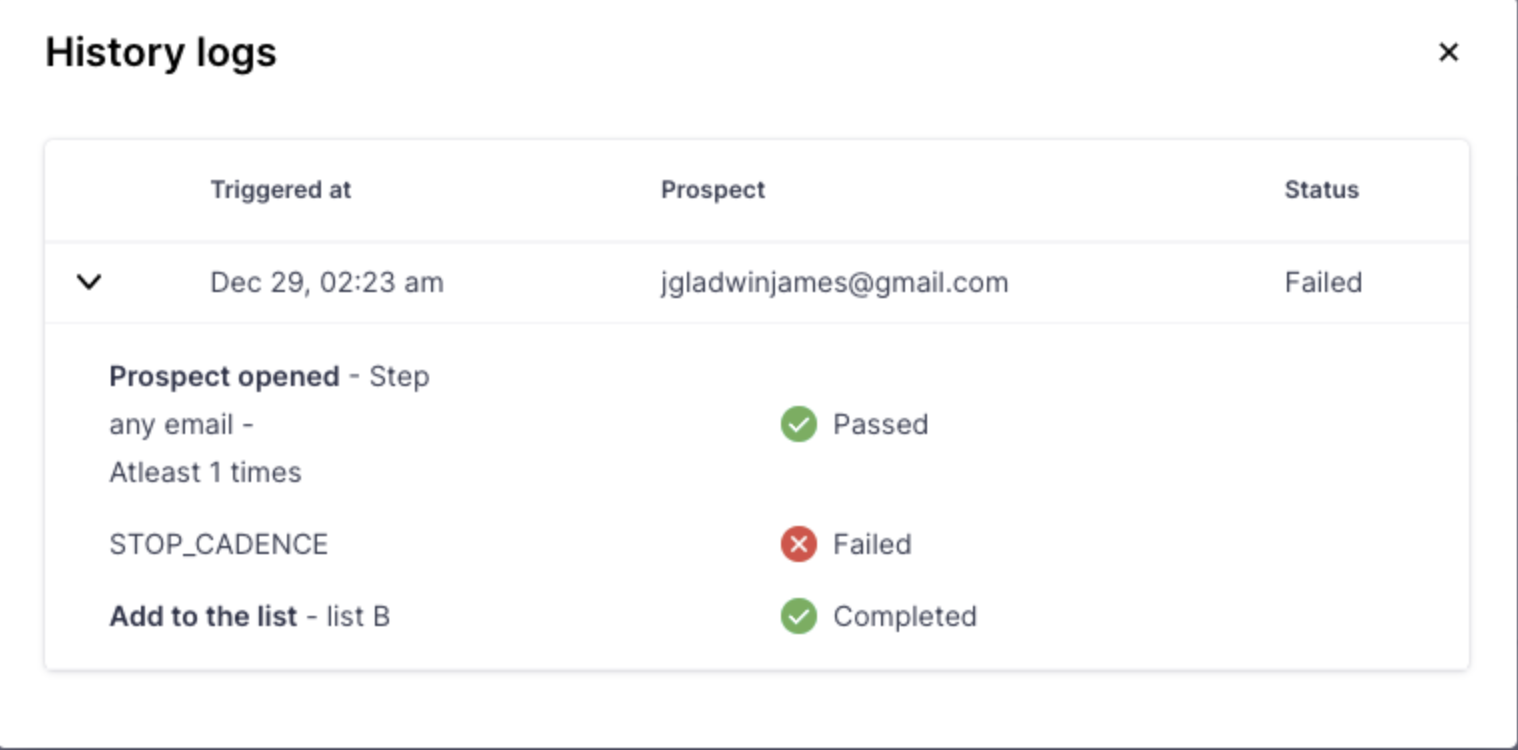
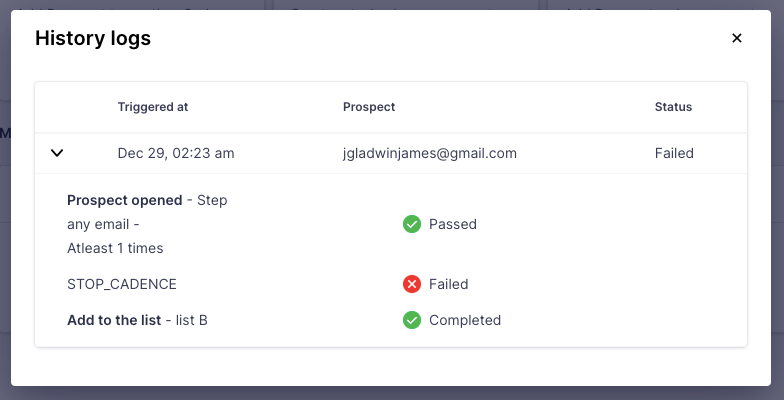
History. Check the logs of your playbooks in the History section of the Playbook tab.
For Pipedrive, ownership matters for the playbook to run on its own:
The cadence owner should be the same as the owner of the deal you want to push into the cadence.
You also choose the deal owner when you create the playbook. The deal owner and the cadence owner don't have to be the same person.
One playbook covers one pipeline and one stage. Create one playbook per stage if you want a different cadence for each.
When you clone a cadence, tick Copy with Playbook to copy its playbooks too.
For more about playbooks and other conditions, see the cadence articles on playbooks.
