If a prospect has opted out, or you simply must not email them, change their status to Unsubscribed or Do not Contact. Klenty will not email prospects with either status.
Prospects > select the prospect(s) > actions menu (three dots) > Change Prospect Status
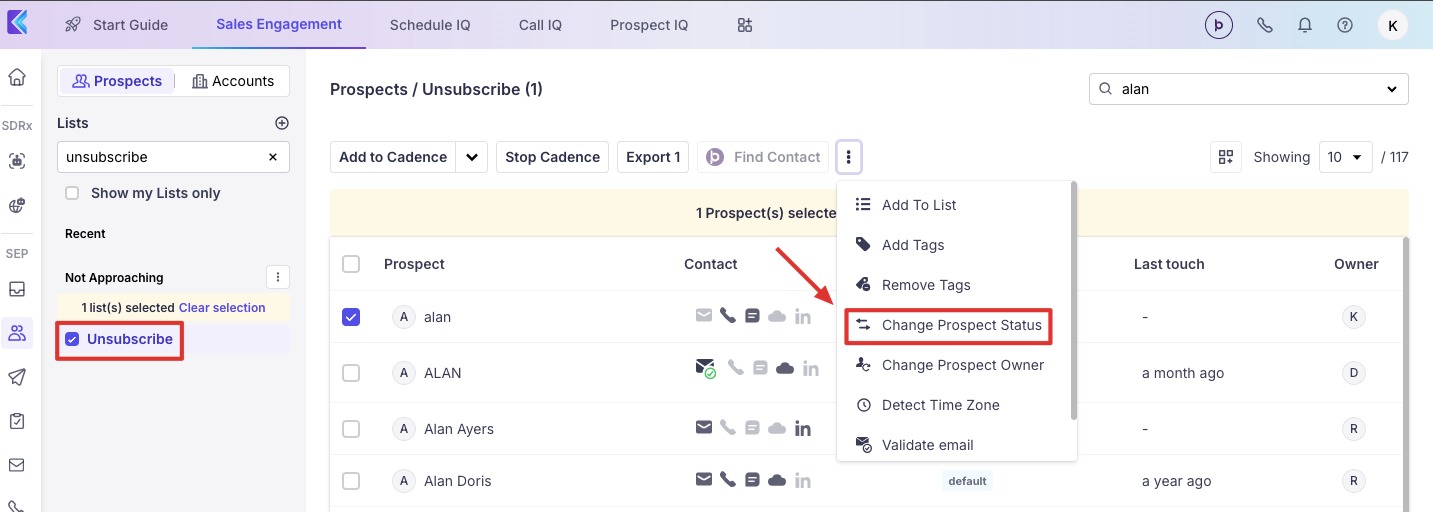
On the Prospects page, select one or more prospects.
Open the actions menu and choose Change Prospect Status.
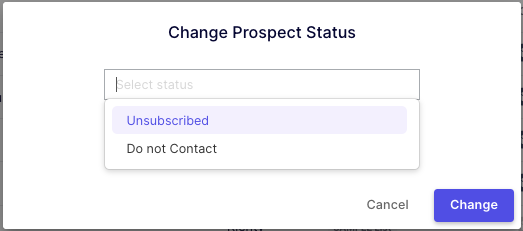
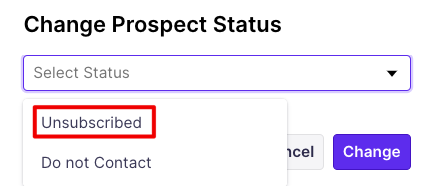
Pick Unsubscribed or Do not Contact.
Click Change.
Status | What it means |
Unsubscribed | The prospect opted out. This is permanent. You can never email them from Klenty again, and they cannot be added to a cadence. When you set it manually, Klenty warns you: "This action is irreversible." |
Do not Contact | You do not want to contact the prospect for now. This can be undone. |
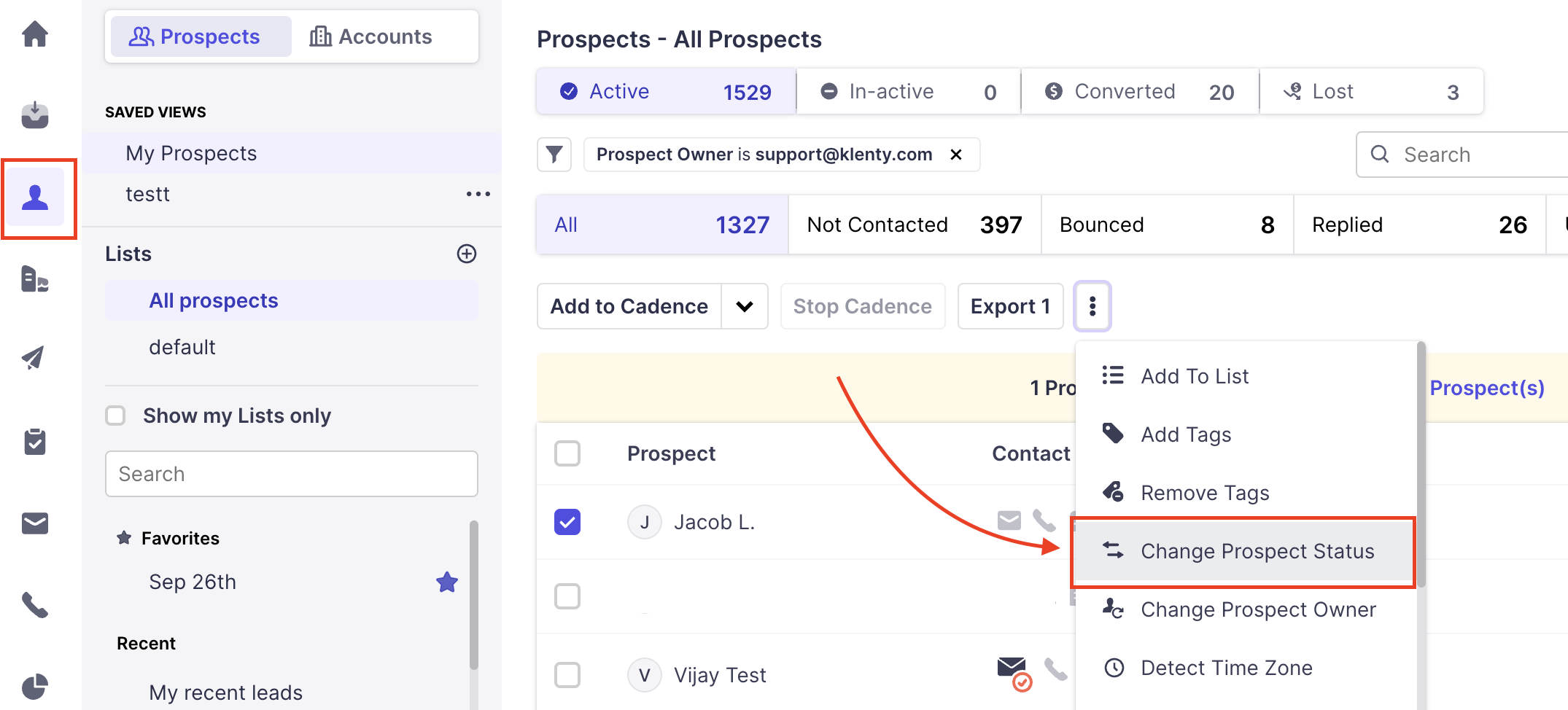
Select the prospects and choose Change Prospect Status again.
The Revert Prospect Status from Do not Contact dialog opens. Click Change.
Each prospect goes back to their previous status. If a prospect was in a cadence, their status becomes Manually Stopped, and you can resume it from the Prospects page.
If you have a list of people who unsubscribed from earlier campaigns, bring them into Klenty and mark them in bulk:
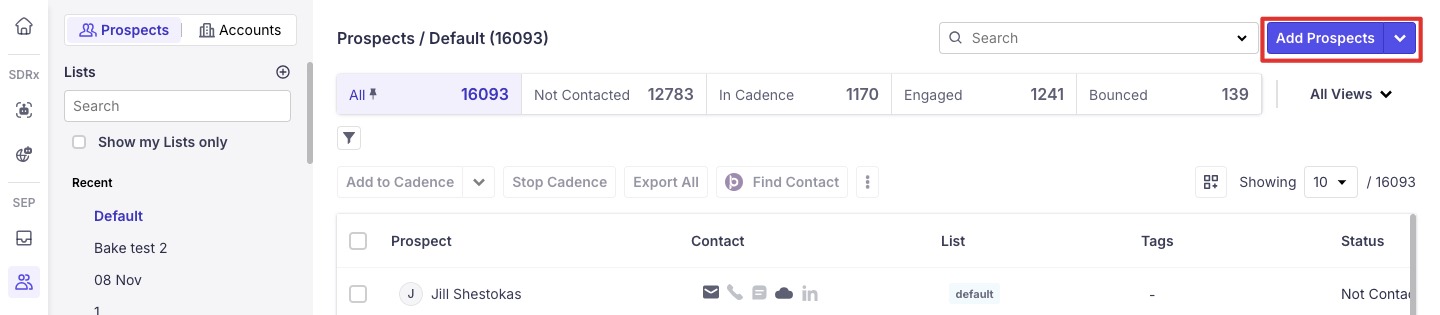
Go to Prospects > Add Prospects and import them with any method you like, for example Upload a CSV file.
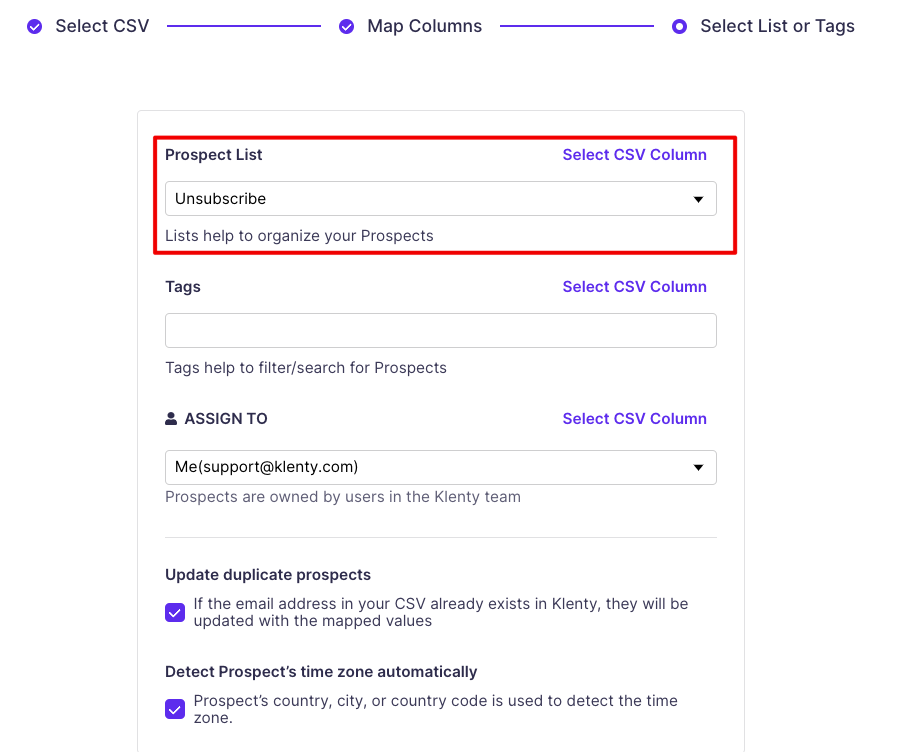
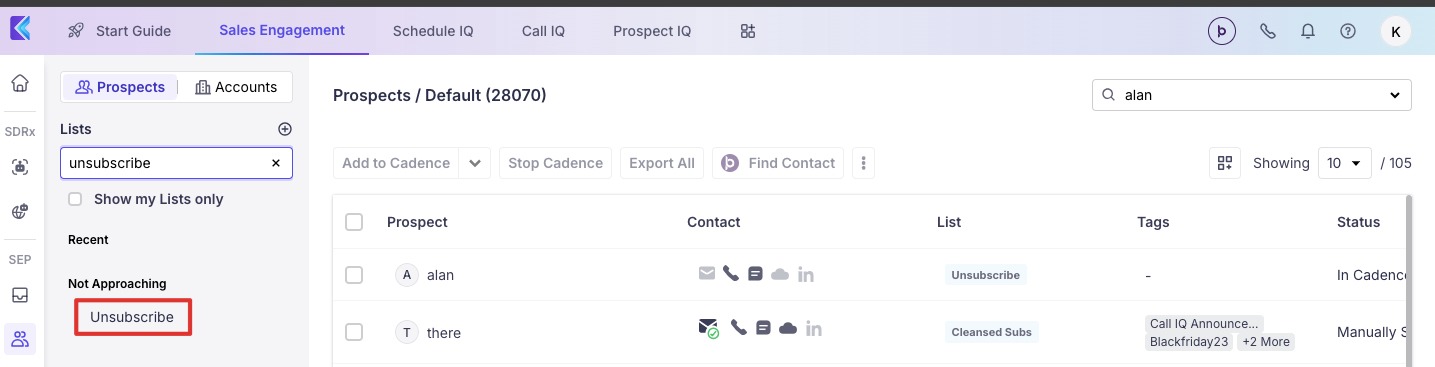
While importing, give the import a list name such as "Unsubscribed" and click Start Import. Klenty puts all of them in that list.
Go to the Prospects page and filter by that list.
Select all the prospects, open the actions menu and choose Change Prospect Status.
Pick Unsubscribed (or Do not Contact) and click Change.
Prospects marked Unsubscribed or Do not Contact are skipped when you add prospects to a cadence or send a mail merge.
To block a whole company instead of single prospects, see Blacklist Domains.
To understand the other statuses, see Prospect statuses.
