With the Klenty plugin, you can call directly from Pipedrive and have the calls logged in Klenty.
Install the Klenty Chrome extension and log in to it with your Klenty account.
Make sure Pipedrive is connected to your Klenty account. See Connecting your Pipedrive Account.
Activate the plugin dialer: go to Settings → Calls → Activate Plugin Dialer and switch the toggle on (Enabling this allow you to make calls from CRM). This option appears only if your plan includes it.

When you open Pipedrive, you'll see Klenty's floating dialer. When you open your contacts, use the dialer icon next to the phone number. The icon is available in the Leads and Contacts modules.
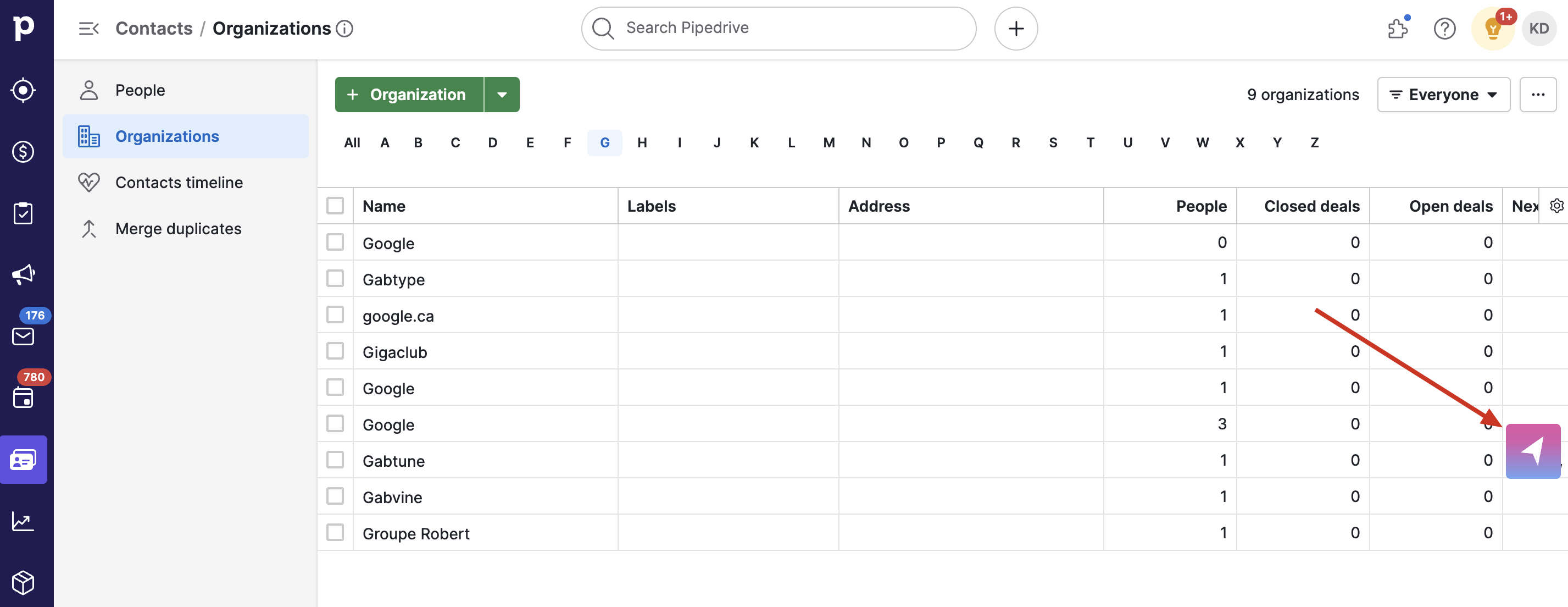

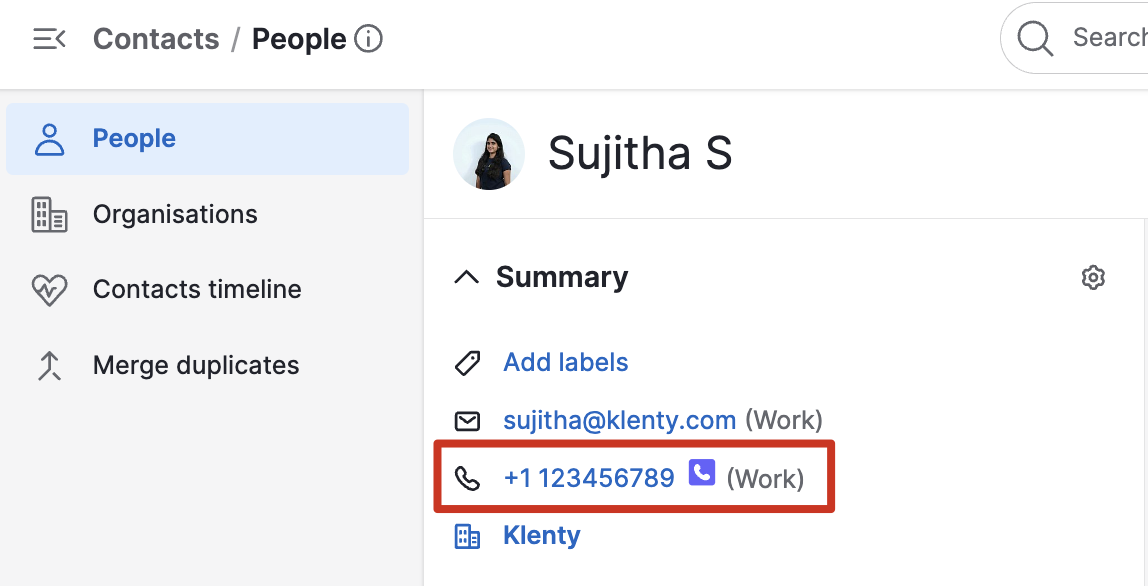
For a one-off call, click the floating dialer icon. These calls are synced under Calls → Completed Calls in Klenty.
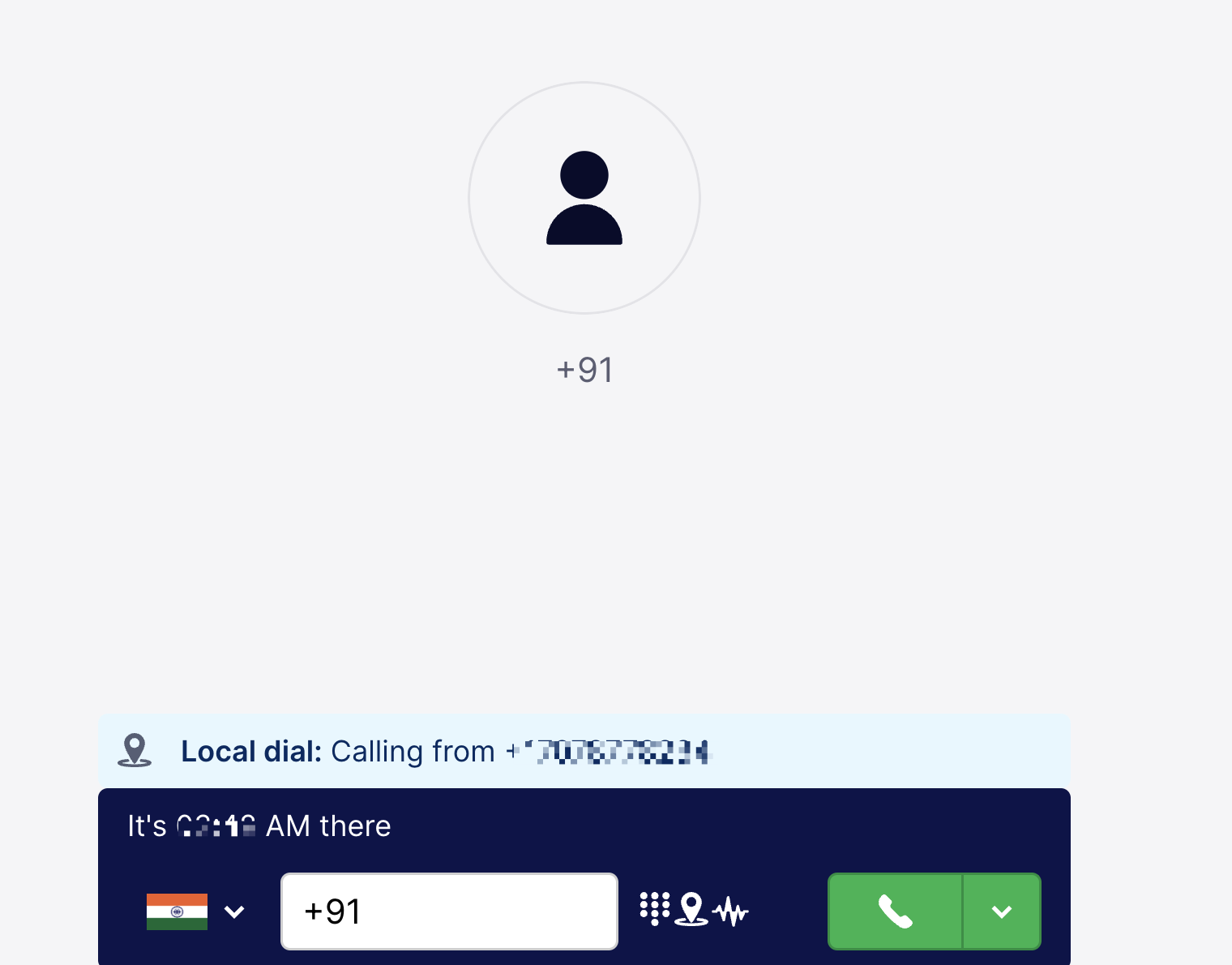
To also log call outcomes back into Pipedrive, see Syncing call results from Klenty to CRM.
I can't find the dialer window in Pipedrive. The dialer may open in a new tab instead of inside the Pipedrive window. This mostly happens on Mac when the browser is in full-screen mode.
Calls made through the plugin aren't recorded for the prospect. Sometimes calls are saved as one-off calls in Klenty, which can stop the data from syncing to the right prospect. This can happen if you previously connected a different CRM account in Klenty. Contact Klenty support to fix it.
